Connecting s.i.m.b.a to Looker Studio
- Nguyen Huynh
- February 4, 2024
- Walkthrough
- 0 Comments
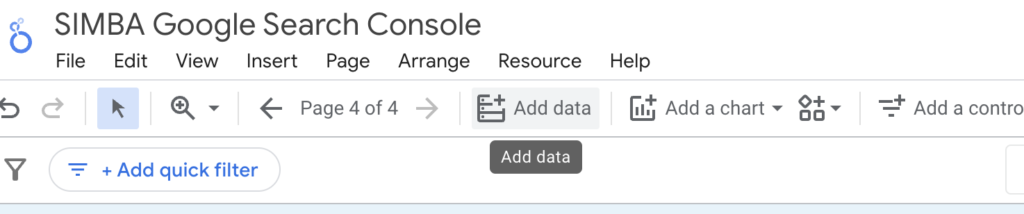
- Select the report you want to add your data source to. Then click ‘Add Data’
2. A window will pop up with the different connectors you can add to your report. Search for s.i.m.b.a to find s.i.m.b.a connectors
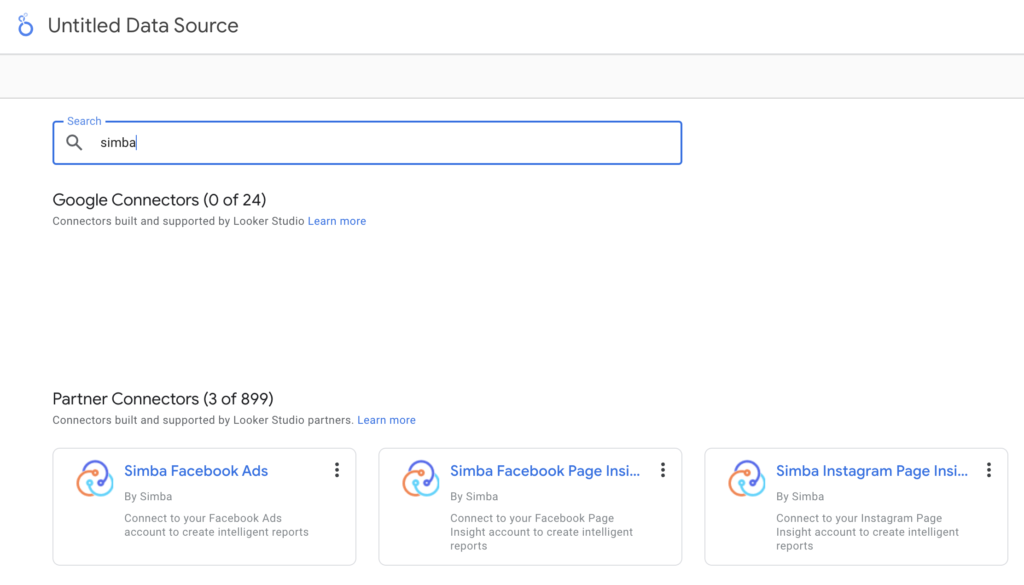
3. Select the s.i.m.b.a data source you want to connect to.
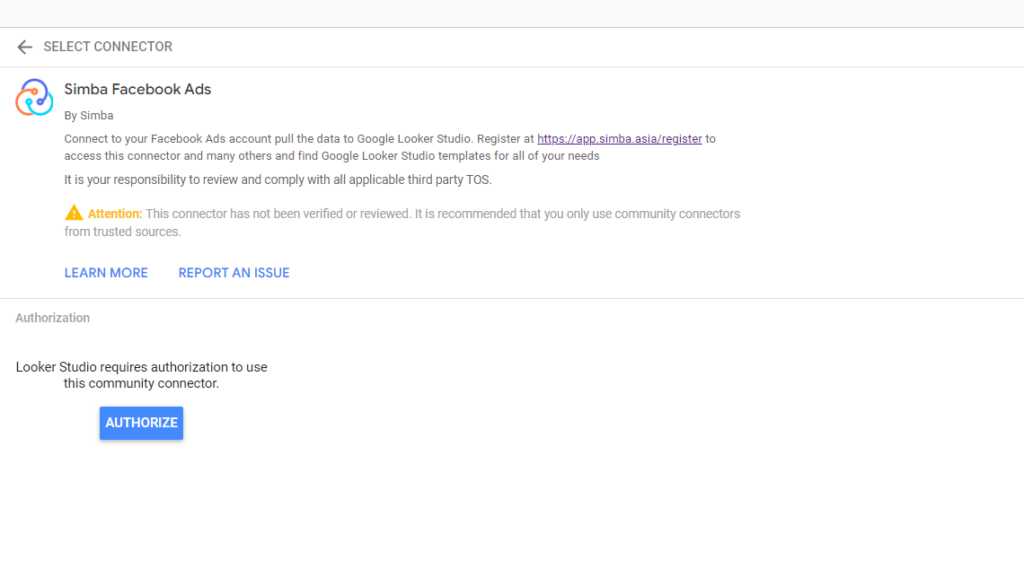
4. Now authorise your Google account to connect through s.i.m.b.a
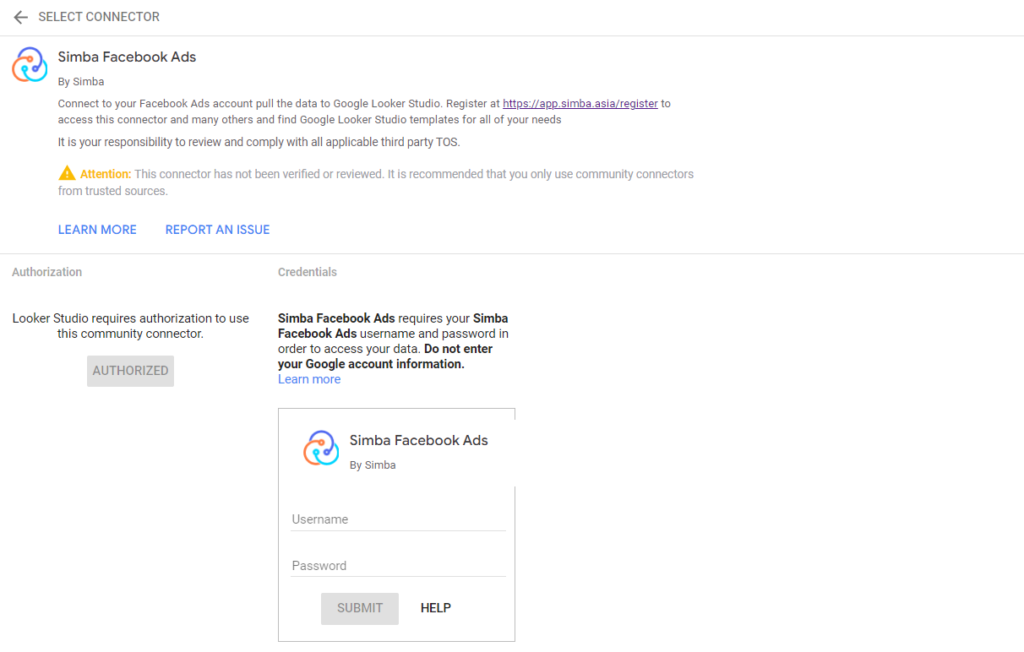
5. In the following step you will be asked to login to your s.i.m.b.a account to access the platforms you have set up in s.i.m.b.a.
6. You will now need to select the specific workspaces and assets you have linked to your accounts for Facebook Ads the steps are as follows
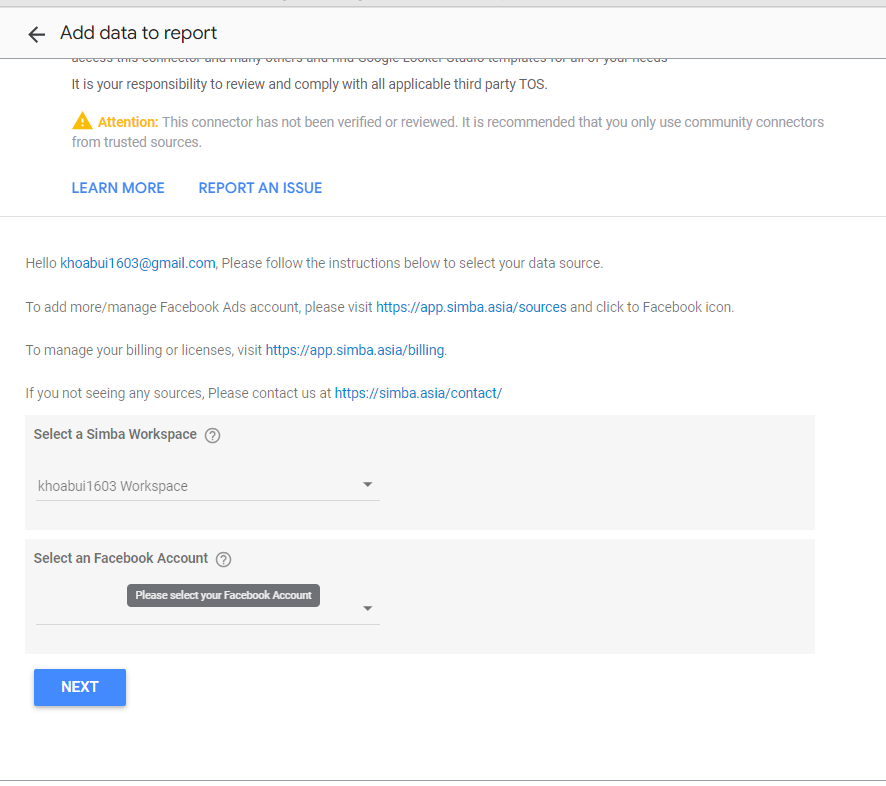
7. Select the Facebook account
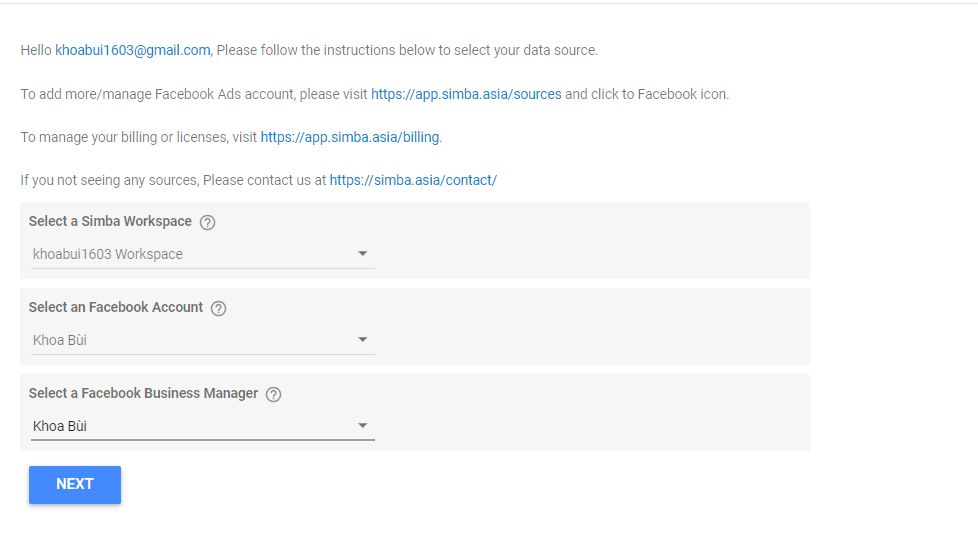
8. Select the Facebook Ads account that is linked to your Facebook Login Click next and add the data source to your report
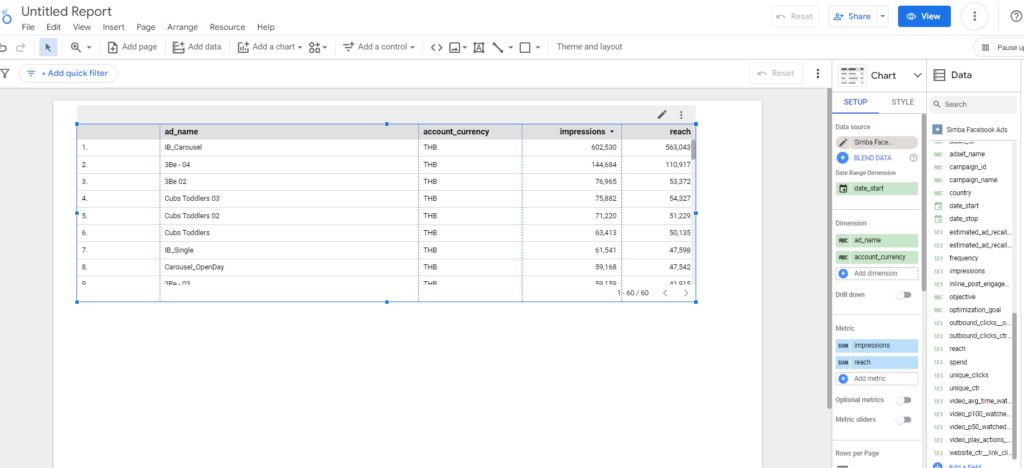
9. Now you can use this data source in your reports you will be able to add charts and select the measurements you want to visualise in Looker Studio
Related Posts

- Nguyen Huynh
- February 4, 2024
Duplicating a Looker Studio Report
Follow these steps to duplicate a Looker Studio Dashboard and replace it with your own data sou ..

- Nguyen Huynh
- January 31, 2024
Never used Looker Studio? Register an account on Looker studio.
Follow these steps to register an account on Looker Studio, If you don’t already have one. 1. ..


Leave A Comment
You must be logged in to post a comment.